Git and Team Synchronization
Solo offers various ways to collaborate using Git as a synchronization engine. This allows you to keep collections in sync within the team via major services (GitHub, GitLab, Bitbucket) or private servers.
Benefits of Git Synchronization
Section titled “Benefits of Git Synchronization”Native integration with Git offers structural advantages:
- Total Control: Data resides in your local or remote repository, without using third-party servers.
- Professional Versioning: Every change has a history, an author, and is reversible.
- Optimized Collaboration: Ability to work offline and synchronize changes on-demand.
- Transparency: Collections are saved in readable JSON format for easy “diff” reviews.
Activating Synchronization
Section titled “Activating Synchronization”-
Link a Repository: Click the Git icon next to a collection’s name in the sidebar.
-
Configure the URL: Enter the remote repository URL (HTTPS or SSH) and its internal path.
-
First Sync: Download the existing collection or upload the local version if the repository is empty.
-
Activity and Sharing: Make changes to requests. When finished, access the Git panel and select “Sync”.
Conflict Management
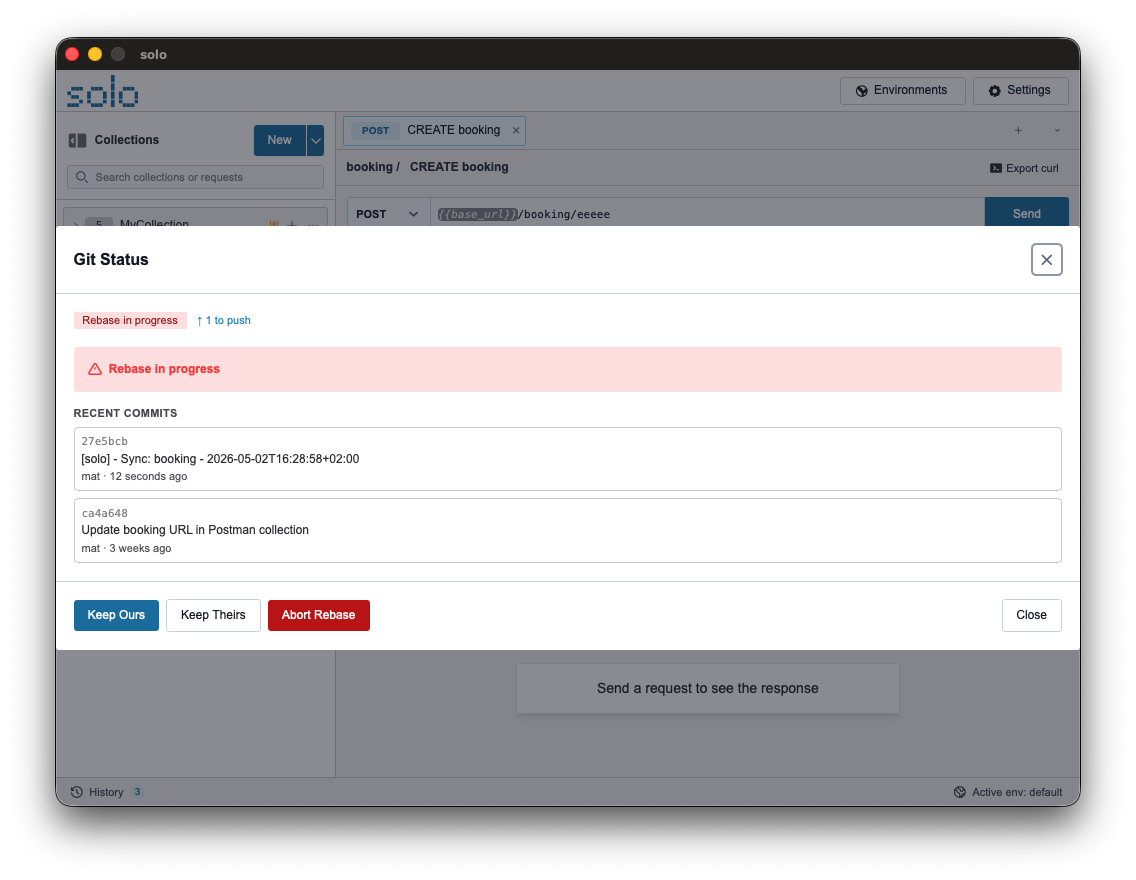
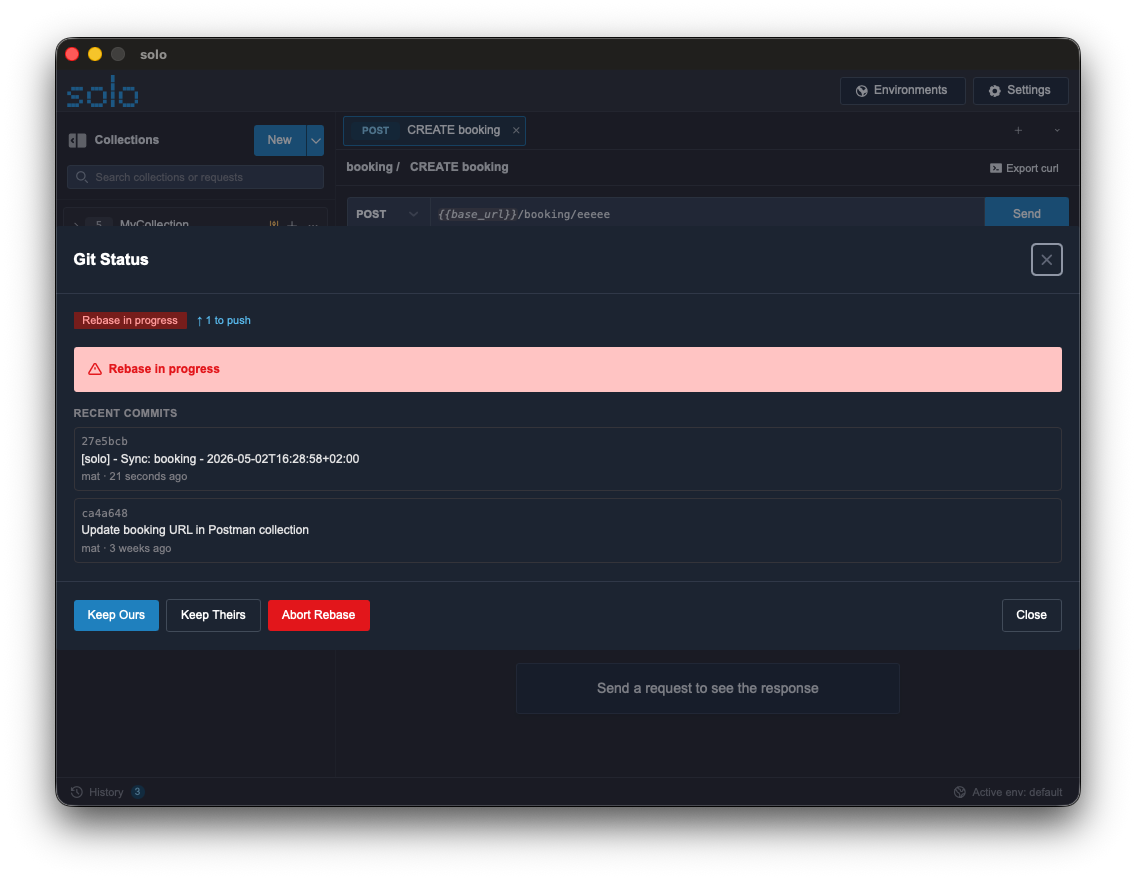
Section titled “Conflict Management”In case of simultaneous changes to the same request, Solo manages conflicts visually and safely. A conflict detected during synchronization is flagged with a lightning bolt icon. Two options are available:
- Keep Ours: Maintain the local version of the request and discard remote changes.
- Keep Theirs: Accept the remote version and update the local collection.
Advanced Features
Section titled “Advanced Features”Automatic Rebase
Section titled “Automatic Rebase”To maintain a linear history, Solo uses a pull --rebase strategy by default, avoiding unnecessary merge commits.
Discard Changes
Section titled “Discard Changes”The “Discard All Changes” function allows for instant cancellation of any unsynchronized local changes.